
Environment Setup
Qubis ships almost everything it needs. The exceptions are the things it cannot legally or practically bundle — a container engine, a couple of GPL-licensed or platform-level tools — and those are what this page is about.
Nothing here is required to open Qubis, edit files, view geometry, or run the agent. Each item unlocks one specific capability, and Qubis tells you when one is missing rather than failing quietly.
You do not have to install them by hand. When a task needs one, the agent puts an Install card in the chat, and Settings → Local tools installs any of them ahead of time. This page is the reference behind both: what each tool unlocks, and what to do when you would rather install it yourself.
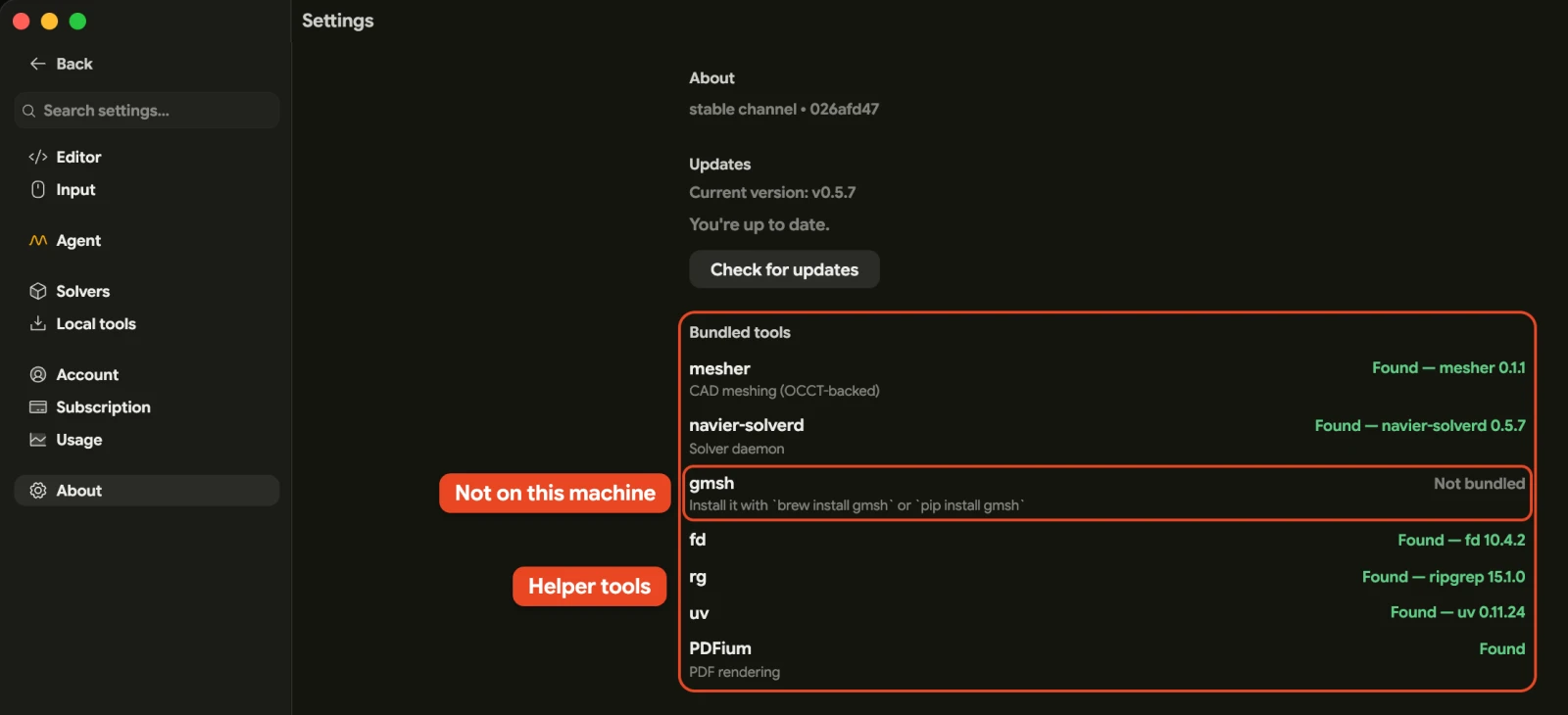
What needs what
| Capability | Needs | Bundled |
|---|---|---|
| Launching Qubis | An account and a network connection | — |
| Editor, viewers, 3D viewport | — | — |
| The agent | A network connection | — |
| Ferro structural solves | — | Ships with Qubis |
| CAD meshing | mesher | Yes |
| PDF viewing | PDFium | Yes |
| Agent search | rg, fd | Packaged installs |
| Parametric code-CAD | uv + a managed Python env | uv bundled; env synced on first use |
| Third-party solvers | A container engine | No — Qubis can install it |
| Alternative meshing | gmsh | No — GPL; Qubis can install it |
.pptx / .docx preview | LibreOffice (or Office on Windows) | No — Qubis can install it |
| MCP servers that run locally | Node.js (npx) | No — Qubis can install it |
| SpaceMouse navigation | 3Dconnexion 3DxWare driver | No |
| Worktrees, gutter markers | git | No — use your system git |
Letting Qubis install them
Qubis asks for nothing up front. When a task needs one of these tools, the agent puts an Install card in the chat saying what it is for: Install runs the same installer as Settings, the card shows its progress, and the agent carries on once the tool is found. Writing a new message instead tells the agent to go without it. An install that fails stays on the card with its error and a Try again button.
Settings → Local tools has one card per tool: what Qubis needs it for, a tick box, and the live state of its install.
| Tool | Default |
|---|---|
| Container engine | Ticked |
| Gmsh | Unticked |
| Office Suite | Unticked |
| Typst | Unticked |
| Node.js | Unticked |
| Pyright | Unticked |
| TypeScript language server | Unticked |
| rust-analyzer | Unticked |
Container engine carries a Recommended badge and is ticked for you; everything else is Optional and unticked. The three language servers share one card.
Its card also carries a picker, because more than one engine will do. The segments are this platform's engines, and the line under them says what the picked one costs you:
| Platform | Offered | Picked for you |
|---|---|---|
| macOS | Colima, Docker Desktop | Colima |
| Windows | Podman, Docker Desktop | Podman |
| Linux | Podman, Docker Engine | Podman |
Colima and Podman are picked because neither needs Docker Desktop's paid
subscription at company size. On macOS, Colima needs no administrator at all;
on Linux the install itself still needs sudo, but running Podman afterwards
does not. Pick Docker Desktop instead if that is what you already run. The
picker locks once that card's install starts.
Install selected (n) runs the ticked installs, Check again re-detects after you install something yourself. Cancel installs joins them while an install is running and stops the whole run; the tool under way and every tool still waiting read Failed with Cancelled. underneath.
Each tool reports on its own row and settles on its own, so a running install does not lock the screen: you can tick another tool and press Install selected again while the first one works. Only a detection pass, which reads Checking…, holds the buttons.
A row reads Checking…, Not installed, Waiting, Downloading n% — Downloading n MB where the size is not known in advance — Installing…, Installed, Restart needed, or Failed with the error underneath. The Office Suite card is named for what it provides rather than for a program: it reads Using LibreOffice once LibreOffice is installed, and on Windows, where an installed PowerPoint and Word between them cover every format LibreOffice would convert, Using Microsoft Office instead. Ticking it installs LibreOffice. A ticked tool you have to install yourself reads Install with the command below.
Continuing does not cancel a running install: it keeps going and reports into Settings → Local tools.
What each platform does
-
Windows —
wingetinstalls the engine, Gmsh, LibreOffice, Typst and Node.js one at a time, raising its own UAC prompts. Podman and Docker Desktop both run their containers in a WSL 2 VM, so Qubis sets WSL up as part of that install: a pinned WSL package, checked against both its SHA-256 and Microsoft's signature before it runs, and the two Windows features it needs, all under one administrator prompt — the row reads Installing WSL and the Windows features it needs (approve the prompt)…, or Turning on the Windows features WSL needs (approve the prompt)… where the package is already there. When Windows needs a reboot to finish, the row says Restart needed and asks you to restart and reopen Qubis. Podman then needs a machine, which setup creates itself — the row reads Creating the Podman machine… while it does, and an install that stopped for a restart before getting there leaves Podman at Machine not created until you press Install selected again, which downloads about 1 GB. After a failure the screen adds a Get App Installer (winget) link, which is the fix whenwingetitself is missing. -
macOS — downloads run with a progress bar, and every step that needs root runs from one script under a single administrator prompt. LibreOffice, Gmsh and Node.js are pinned to a version and checked against a SHA-256. Colima needs no root at all: it goes into Qubis's own tools folder with the Docker CLI. Docker Desktop is the current DMG, verified by its Developer ID team, and is opened afterwards so it can finish its own first-run setup.
-
Linux — the package-manager installs need root, so Qubis shows the commands instead of running them: one
apt/dnf/pacmanline for the tools you ticked, then whatever the engine you picked still needs, each with a Copy link. Gmsh is a command only on an architecture upstream publishes no build for — on x86_64 Qubis installs it itself.Podman is one package and its own user socket, with no group to join:
sudo apt install podman
systemctl --user enable --now podman.socket
Docker Engine keeps the group step, and the service step everywhere but Debian and Ubuntu:
sudo systemctl enable --now docker
sudo usermod -aG docker $USER
Run them in a terminal, then press Check again. On a distribution Qubis does not recognise there is no package line to give, so the step is an Install Podman or Install Docker Engine link to upstream's instructions instead. Where Gmsh is left to you, Arch installs it with
pipx.
Some installs need no administrator at all: the three language servers on every
platform, Typst on macOS and Linux, and Node.js and Gmsh on x86_64 Linux. They
go into <config>/prism/tools/, which Qubis adds to PATH at startup, so a
tool installed mid-session is found without a restart. On Windows, Typst and
Node.js come from winget like the rest, and a winget install is found without
restarting Qubis.
Container engine
This is the one that matters. Third-party solvers run as containers under
navier-solverd. Without a container engine the
Solver Desk can report its own state and
nothing else.
Ferro is unaffected — it ships with Qubis and needs no container.
Any of them will do. The daemon talks to the Engine API, which Podman's compatibility socket serves too, so Docker Desktop, Docker Engine, a Podman machine, rootless Podman, OrbStack and Colima all run the catalog. Setup installs one for you on macOS and Windows — Colima or Docker Desktop on macOS, Podman or Docker Desktop on Windows — and on Linux it gives you the commands instead. Either way it finds one you installed yourself. The sections below are the manual route.
macOS
Colima is what setup installs, into Qubis's own tools folder. By hand it is two commands:
brew install colima docker
colima start --cpu 8 --memory 16 --disk 100
Docker Desktop for Apple Silicon comes from docker.com instead.
Either way Qubis finds the CLI. It searches PATH first, then these known
locations:
/usr/local/bin/docker
/opt/homebrew/bin/docker
/Applications/Docker.app/Contents/Resources/bin/docker
That fallback list exists for a reason. Docker Desktop only
symlinks its CLI into /usr/local/bin when you grant it privileged access,
and an app launched from the Dock inherits a stripped PATH either way — so
Qubis looks in the known places rather than telling someone who plainly has
Docker that they do not.
Windows
Podman is what setup installs, from winget, and setup creates its machine
afterwards. By hand that is winget install RedHat.Podman and then
podman machine init && podman machine start. Either way WSL 2 has to be on
first; setup turns it on for you.
Docker Desktop is the alternative — install it and pick either install
mode. Qubis resolves the CLI from PATH and from both Docker Desktop install
layouts, derived from the environment rather than assuming a drive letter:
| Mode | Location |
|---|---|
| All users | %ProgramFiles%\Docker\Docker\resources\bin |
| Per user (no administrator needed) | %LOCALAPPDATA%\Programs\DockerDesktop\resources\bin |
%ProgramData%\DockerDesktop\version-bin |
The installer puts these on the user PATH, which a Qubis process started
before the install never sees. The fallback lookup covers that case, so you do
not have to restart anything.
Linux
Podman is what setup suggests here, as one package and its own user socket — rootless, as your own user, with no daemon or group to join. On Debian and Ubuntu:
sudo apt install podman
systemctl --user enable --now podman.socket
Fedora reads sudo dnf install, Arch sudo pacman -S --needed.
Docker Engine comes from your distribution or from
docs.docker.com. Add yourself to the
docker group so the daemon is usable without sudo — the group is
root-equivalent, which is the reason Podman is the suggestion:
sudo usermod -aG docker "$USER"
newgrp docker
Qubis looks on PATH, then /usr/bin/docker and /usr/local/bin/docker, and
for podman the same way.
Rootless Docker works too, provided the docker CLI on your PATH points at
your rootless daemon.
Which engine it talks to
The daemon does not guess at socket paths. It asks each CLI it finds where its engine listens, and takes the first endpoint that answers — so a leftover Docker CLI beside a running Podman does not decide the answer by existing.
| Order | Where the endpoint comes from |
|---|---|
| 1 | DOCKER_HOST, when it is set |
| 2 | The Docker CLI's active context (DOCKER_CONTEXT and its config) |
| 3 | Podman — the machine's forwarded socket, or its service socket |
| 4 | The platform default: /var/run/docker.sock, or the Windows pipe |
DOCKER_HOST is treated as your explicit choice: when it is set, it is the
only candidate, and a dead one is reported dead rather than silently swapped
for something you did not pick. A DOCKER_HOST that needs TLS is not
supported.
Verifying
docker run --rm hello-worldThen open the Solver Desk. It reports the engine's health on its own line — not folded into the daemon's status, because "the daemon is fine, Docker is not" is the most common broken state and deserves to say so. When it is healthy the line names the engine and its version, and hovering it gives the endpoint it reached; when it is not, it says what is wrong, offers a button that fixes it where there is one, and keeps the step-by-step fix — or, for an engine that reported an error, the error itself — behind Details.
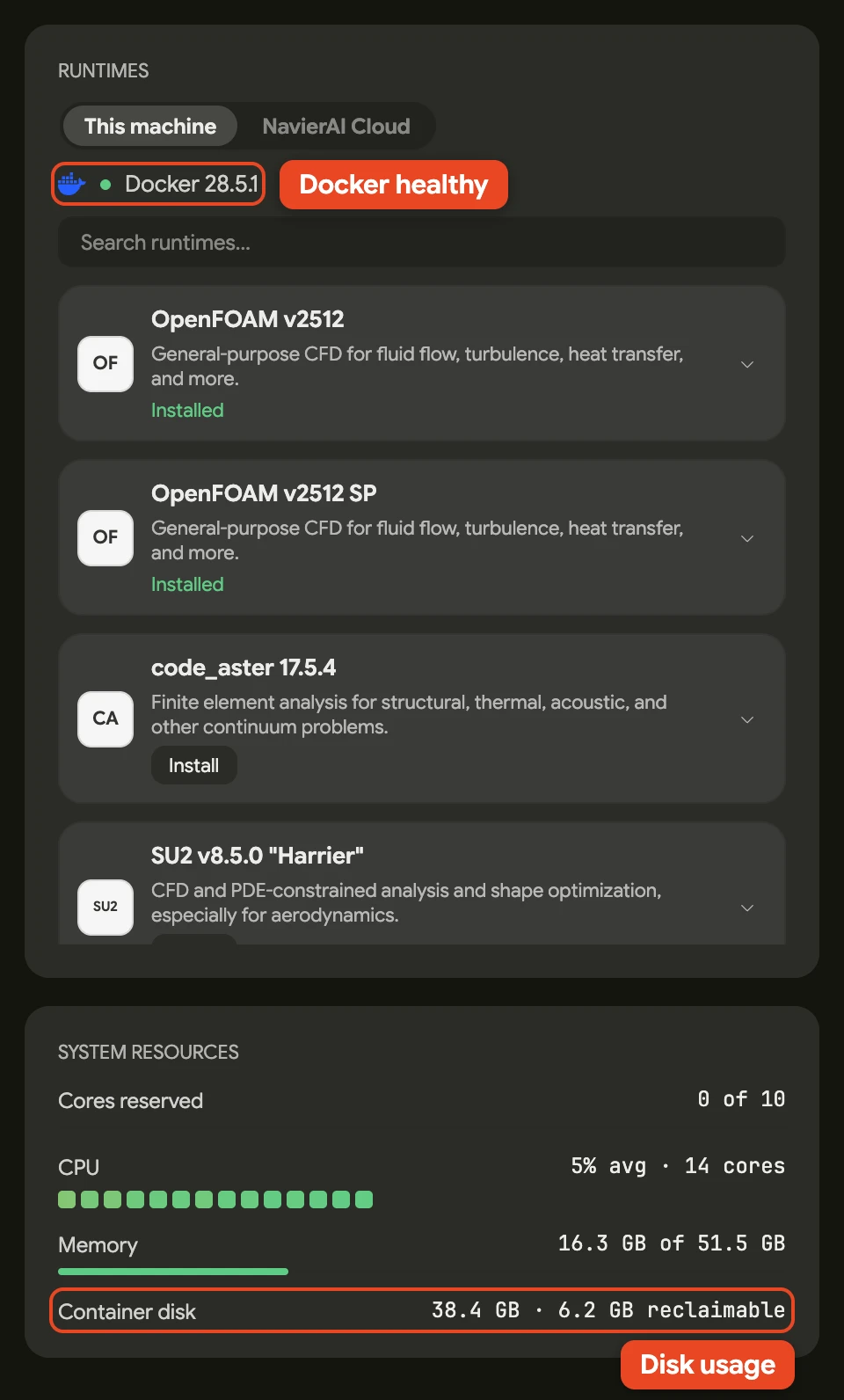
Docker installed after Qubis started is picked up without a restart — the daemon looks again whenever the engine stops answering where it last did. If the Solver Desk still says the engine is unavailable, read its line: it says whether the engine is missing, stopped, unresponsive, or refusing you its socket, and Details says what to do about each.
Sizing it
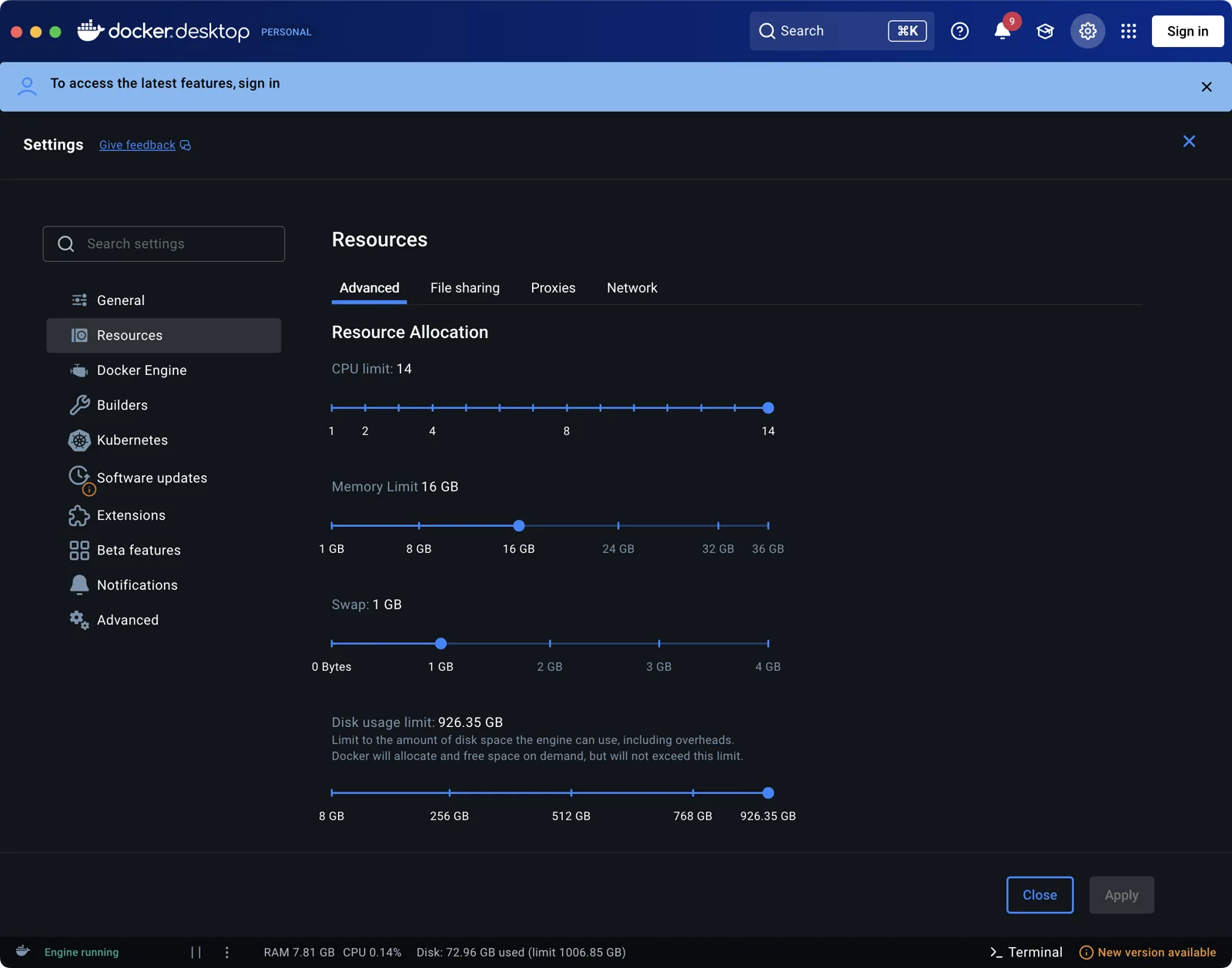
Container CPU and memory limits are set in Docker, not in Qubis, and they cap everything the daemon can do. Qubis's own core budget is computed from the host, so a Docker Desktop VM restricted to 2 CPUs will not deliver the cores the scheduler thinks it reserved.
The daemon's default budget is about three quarters of your physical cores — logical cores halved to account for SMT, except on Apple Silicon, which has none. For OpenFOAM it sizes ranks at roughly 35,000 cells per core, clamped to that budget.
Practical guidance:
- Give the Docker VM at least as many CPUs as Qubis's core budget. Settings → Solvers → Core budget override lowers Qubis's side if you would rather cap it there.
- Memory is the usual cause of a solver killed mid-run with no useful error. 8 GB is a floor for small cases; 16–32 GB is realistic for meshes worth running.
- Give it disk. Solver images are multi-gigabyte each, and the Solver Desk reports Docker's disk usage so you can see where it went.
File sharing
The daemon bind-mounts your case directory into the container — that is how the solver reads your case and writes results back where you can see them. Only what is mounted is visible inside; nothing else on your disk is.
On macOS and Windows, Docker Desktop only shares configured paths. Keep case directories somewhere shared (your home directory is, by default). A case under a path Docker cannot share fails at mount time, not at solve time.
On Linux, containers run as your uid and gid, so results come back owned by you rather than by root. Docker Desktop already maps ownership on macOS and Windows, so Qubis leaves it alone there.
Registries
Installing a runtime pulls a published image. Between them the catalog uses:
- Docker Hub (
docker.io) — OpenFOAM, OpenModelica - GitHub Container Registry (
ghcr.io) — the Qubis-built images
Both must be reachable. Pulls happen inside the engine rather than in Qubis, so a proxy belongs in Docker's own configuration — whatever you set there is what a pull uses.
Optional tools
Every tool in this part of the page is in Settings → Local tools and on the agent's Install card, so the commands below are the manual route rather than the only one.
gmsh
Deliberately not bundled: it is GPL-licensed. Qubis's own OCCT-backed mesher
covers the common path, and gmsh is there when you want it.
brew install gmsh          # macOS
sudo apt install gmsh      # Debian/Ubuntu
pip install gmsh           # any platform, including Windows
On x86_64 Linux, Qubis installs gmsh itself rather than leaving it to the
package manager: the upstream build goes into <config>/prism/tools/gmsh/, and
it keeps working on a machine whose distro packages would refuse to install the
distro gmsh. Other Linux architectures keep the command above.
On Windows, use pip install gmsh or the SDK from gmsh.info with its bin
folder added to PATH.
Qubis resolves gmsh from PRISM_GMSH, then beside its own executable, then
PATH — on macOS and Linux the PATH your login shell has, rather than the
narrower one a GUI launch inherits, so a Homebrew or pip --user install is
found without extra configuration. Qubis's own tools folder is on that PATH,
so an install it did needs no further setup. When gmsh is missing, the error
names what to do on the platform you are on; on Linux it points at
Settings → Local tools first.
LibreOffice
Qubis previews a .pptx deck or a .docx document by converting it to PDF and
handing the result to the bundled PDFium, and LibreOffice is the converter on
every platform. Without it those files report the gap instead of rendering; see
Documents & Media.
brew install --cask libreoffice                            # macOS
sudo apt install libreoffice                               # Debian/Ubuntu
winget install -e --id TheDocumentFoundation.LibreOffice   # Windows
On Windows, an installed Microsoft PowerPoint or Word is used first — the application that authored the format renders it exactly where LibreOffice re-implements it — with LibreOffice as the fallback. Everywhere else LibreOffice is the only engine.
Qubis looks for soffice in the usual install locations
(/Applications/LibreOffice.app, /opt/homebrew/bin, /usr/local/bin,
/usr/bin, C:\Program Files\LibreOffice). PRISM_SOFFICE points at an
install those miss.
Conversions are cached per file, so only the first open of a deck pays the few seconds it takes.
typst
Qubis has no built-in Typst report compiler. Install Typst to compile authored
.typ files — yours from the command line, or the agent's through the shell.
brew install typstNode.js
Atlassian, GitHub, Linear, Notion and Sentry are hosted servers that authenticate
through your browser, so none of them need Node.js. An MCP server you add
yourself may run as a local child process via npx, and that one does.
3DxWare
For a 3Dconnexion SpaceMouse. Qubis talks to the 3DxWare driver rather than the device directly, so without the driver there is nothing to talk to. Install it from 3Dconnexion, then check Settings → General → 3D viewport → 3D mouse is on.
git
Used for the editor's gutter markers, the git commands in the command palette,
and per-thread worktrees. Qubis shells out to your system git binary rather
than a bundled one — git's own worktree command handles the corner cases that a
library leaves to the caller.
Any recent git will do.
Language servers
Editor diagnostics, hover, completion, and rename come from the Language Server Protocol, so a language gets them when a server for it is installed on your machine. No server, no diagnostics — the editor still works.
Pyright, the TypeScript language server, and rust-analyzer are the three Qubis
installs for you. Pyright and the TypeScript server are npm packages that run
on Node.js, and nothing ticks Node.js for you — tick it alongside them, or
their install fails saying Node.js has to be installed first. The npm packages
are installed last in a pass, after Node.js, so both can go in one — and in one
npm install, so ticking either server installs both. The one you left
unticked reads Not installed until the next Check again.
The managed Python environment
The agent's Python scripts (prism_python_run) and build123d CAD scripts
(prism_cad_run) run in a hermetic, pinned Python environment that Qubis
manages for you — Python 3.12 with numpy, scipy, pandas, matplotlib, pyvista,
CoolProp, Cantera, gmsh, build123d and bd_warehouse. You do not install any of it
yourself, and your own Python setup is never used.
- The environment is synced to
<config>/prism/python-env/the first time it is needed, using the bundleduv. - That first sync downloads wheels, so it needs a network connection and a minute. Later runs reuse it and re-sync only when the pinned lock changes.
uvships beside the Qubis executable in packaged installs. In a hand-assembled install,brew install uv(or anyuvonPATH) works.PRISM_PYTHONbypasses the managed environment entirely and uses an interpreter you point at — at which point its dependencies are yours to keep working.
A script that needs a package the environment does not pin gets it for that run
— the agent names the package, or points at a requirements.txt in the project
— resolved together with the base pins, so an incompatible addition fails
before the script runs rather than breaking a bundled import halfway through.
What a script needs is recorded next to it under the script's own name —
solve.py gets solve.prism-python.json — which a later run of the same file
reuses. None of this edits the environment above.
Where that is not enough — a project with its own pyproject.toml or lockfile,
a dependency that conflicts with the pins, another Python version, an editable
install — the agent is told to work in that project's own environment through
the shell instead, leaving both your project's configuration and this
environment alone.
Network access
| Reached for | Host |
|---|---|
| Sign-in | Qubis's Auth0 tenant |
| The agent | api.qubis.app on stable builds |
| Updates | releases.qubis.app |
| Solver images | docker.io, ghcr.io |
| Python env sync | The Python package index |
Sign-in uses a PKCE flow that returns to a loopback callback on port 19275. A local firewall that blocks loopback listeners will break sign-in; nothing outside your machine needs to reach that port.
The solver daemon binds port 8420 by default, falling back to any free port if it is taken. It listens locally — Settings → Solvers → Port override changes it.
Environment variables
Mostly for development and unusual installs. None are needed for a normal setup.
| Variable | Effect |
|---|---|
PRISM_GMSH | Path to a gmsh binary or pip-installed script |
PRISM_PYTHON | Interpreter to use instead of the managed Python environment |
PRISM_SOLVERD_PATH | Path to a navier-solverd built elsewhere |
PRISM_SOFFICE | Path to a LibreOffice soffice binary |
PRISM_OFFICE_CONVERTER | Pin the Office converter (libreoffice, powerpoint, word) |
PRISM_SKIP_PDFIUM_FETCH | Skip fetching PDFium (offline and vendored builds) |
Solver daemon tuning — cores, idle shutdown, catalog, port — is exposed in Settings → Solvers rather than through environment variables. All four take effect on the daemon's next start.
Keep the install directory intact
Qubis resolves navier-solverd, mesher, PDFium,
and the bundled rg/fd/uv relative to its own executable:
macOS    Qubis.app/Contents/MacOS/Qubis  → ../Resources/bin/…
Linux    <install>/Qubis                 → <install>/bin/…
Windows  <install>\Qubis.exe             → <install>\bin\…
Copying the Qubis binary somewhere on your PATH silently loses all of it.
Launch it from where it was installed, or symlink to it — do not move it out.
The bundled bin directory is appended to PATH, not prepended, so a
brew-installed rg of your own still wins. Qubis only contributes a floor.
Checklist
Before your first real session:
- Qubis launches and you are signed in — Settings → Account.
- Settings → About shows the bundled tools resolved.
docker run --rm hello-worldworks, if you intend to use third-party solvers.- The Solver Desk reports Docker healthy.
- The Docker VM has CPU, memory, and disk matching the size of case you actually plan to run.
gmshand LibreOffice installed, if you want alternative meshing or.pptx/.docxpreview — from Settings → Local tools, or by hand. Typst only if.typfiles get compiled; Qubis does not generate report PDFs on its own.
If something on that list fails, Troubleshooting takes each case in turn.